
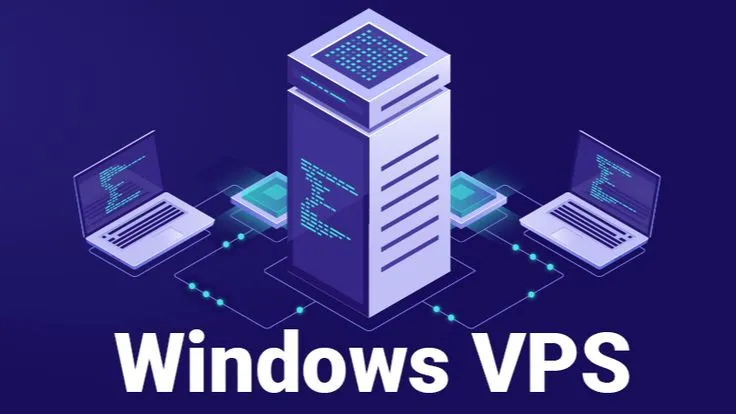
A distributed team may need one shared Windows application even when staff work from different cities or use different devices. A Windows Virtual Private Server can provide a central environment, but giving everyone an administrator login is not a workable collaboration strategy.
Good remote access starts by separating everyday tasks from system administration. It also requires attention to user experience: a secure server that employees cannot reliably reach will not solve the original business problem.
Decide who needs which applications
Speak with each department before creating accounts. Finance may require access to an invoicing package, while customer support needs only a browser-based dashboard. Put these requirements into a simple permissions matrix, so access decisions do not depend on memory or informal messages.
Check whether the applications are licensed for simultaneous remote use. Windows Server Remote Desktop Services can involve additional licensing and configuration beyond basic administrative Remote Desktop connections. Confirm permitted session counts and license requirements before inviting an entire team onto a server.
Protect the entry point
Use a VPN or a managed secure access gateway rather than exposing unrestricted Remote Desktop access to the internet. Require strong authentication, preferably multi-factor where supported. Administrators should use separate privileged accounts and avoid daily work while signed in with full system rights.
Limit connections by role, keep firewall rules narrow and review login logs for unusual activity. These basic controls reduce the impact of a stolen password. Security also means removing former employees promptly and checking external contractors’ access when projects finish.
Choose location around users
Windows Vps Hosting should be assessed from the places employees actually connect. A server close to headquarters may feel slow for a remote workforce overseas. Run short trials across representative networks and test ordinary tasks such as opening files, printing reports and navigating menus.
Latency is only part of the experience. A saturated internet connection or congested home Wi-Fi can create symptoms that look like server faults. Provide staff with a brief troubleshooting guide so they can report connection problems with useful details instead of simply saying the system is slow.
Keep shared files orderly
Agree on where documents live, how they are named and which folders contain confidential material. Do not use the server desktop as a common dumping ground. Apply permissions to shared directories and keep backup policies separate from individual users’ ability to delete files.
For applications that generate temporary files, check storage consumption and cleanup requirements. Establish a simple process for requesting additional access. Organised shared storage helps both security and collaboration, especially when staff turnover or seasonal hiring changes the team.
Build daily operating routines
Assign responsibility for updates, antivirus status, backup reviews and account requests. Plan maintenance outside peak hours and tell employees when the service may be unavailable. Before significant changes, capture a recoverable backup and document the prior configuration.
Create a short onboarding guide with approved connection steps and a contact for support. Run a periodic access review to confirm permissions still match job responsibilities. A well-run remote workspace should be easy to use without relying on risky shortcuts.
Check devices and support readiness
Test access using the oldest supported device employees rely on. A perfectly configured server may still be difficult to use if endpoint policies, authentication methods or client versions differ across the team. Standardize instructions wherever practical.
Plan who handles a forgotten password, locked session or new employee onboarding. Fast resolution of these small issues determines whether the centralized workspace saves time or creates another help-desk queue. For a team with changing membership, define how access requests are approved and how quickly revoked accounts must be disabled. Keep a record of license assignments and device requirements. An offboarding checklist reduces the chance that an old account remains active after someone leaves.
Conclusion
Remote access works best when people can reach only what they need and administrators maintain clear ownership. Security, licensing and everyday usability should be reviewed together, not treated as separate afterthoughts.
A central Windows environment can be practical for teams with a shared application requirement. cheapwindowsvps.com is one place to compare hosting options, provided each candidate is checked for access controls and the necessary remote desktop licensing. Review access whenever responsibilities change, and give employees a clear way to report connection problems without sharing passwords or bypassing approved controls.